
News
Signal on iPhone: screenshots off by default, here's the toggle
Updated
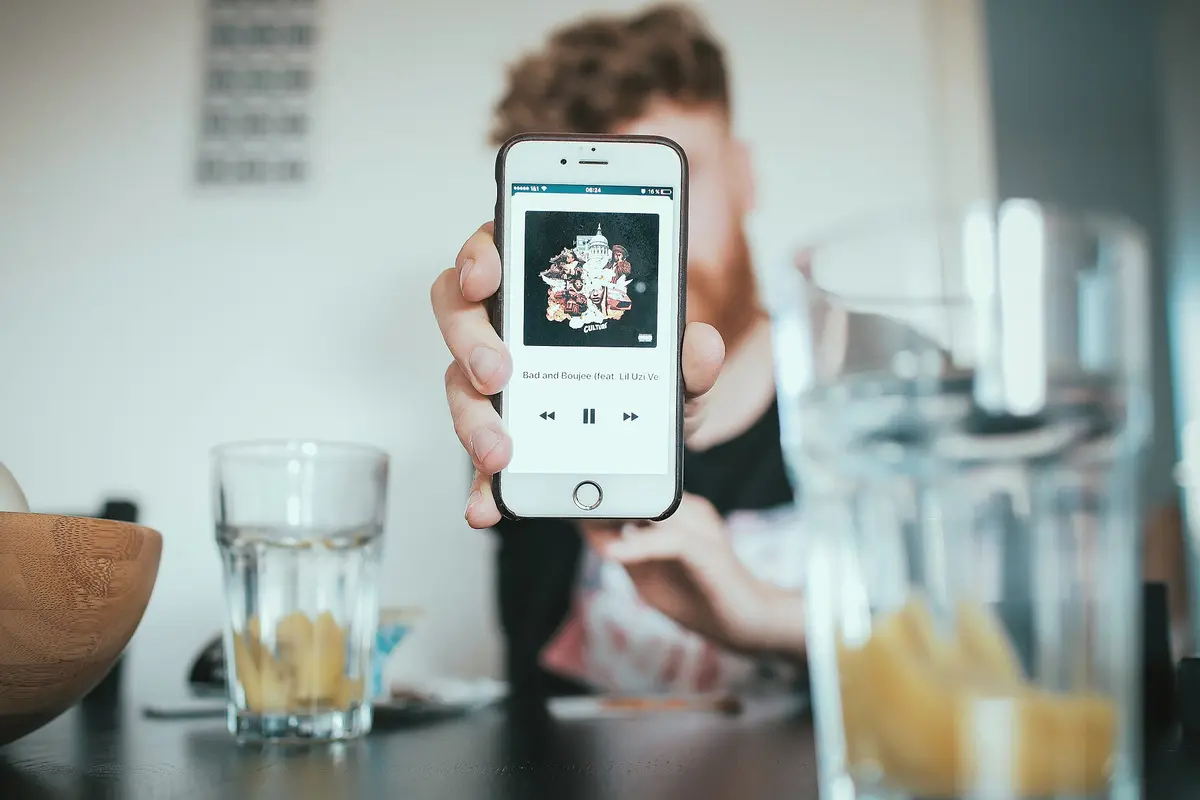
Screenshots blocked by default after the update
Signal has released a new iPhone update that disables screenshots automatically. According to what Signal told Reuters, the aim is to keep Siri AI from reading chats. After updating, a user who tries to take a screenshot sees a message stating that the screenshot was prevented by the 'Block Siri AI' setting. The block is active from the moment the update is installed, so nothing has to be switched on manually. Per the in-app settings text, it covers screenshots in the app and in the App Switcher.
Compare before you choose
From our ranking: Best Flagship Smartphones (2026)
Affiliate links: we may earn a commission from qualifying purchases, with no effect on the price or the order of products.
How to turn screenshots back on
There is a workaround. Users who want screenshots again can go to Signal's privacy settings and turn off the new toggle labeled 'Block Siri AI.' The in-app description of that toggle says it prevents Siri AI from scanning Signal content and that this also blocks screenshots in the app and the App Switcher. 9to5Mac's Arin Waichulis noted that the toggle sits in settings, is on by default, and has no equivalent in the Mac app.
Why Signal did it itself
Signal's stated reasoning, as reported to Reuters, is that Apple does not currently offer better tools for iOS developers to protect app content from Siri AI and third-party AI agents. Apple already lets users block Siri AI from accessing apps they manually exclude, and 9to5Mac reports that this became even easier in iOS 27.2. Rather than directing users to that system option, Signal appears to have concluded it needed to act itself with this update. 9to5Mac frames the move as raising questions about a potential gap in privacy tools for iOS developers; that framing is the outlet's, not a confirmed fact.
What changes for you day to day
Anyone who shares screenshots of conversations should expect the block to get in the way until the setting is changed. The on-screen message names the toggle responsible, so there is no need to search through menus. Users who prefer to keep Siri AI away from their Signal content can leave the setting as it is after updating. According to 9to5Mac, the Mac app has no equivalent switch, so the behavior described here applies to iPhone.
What to check before you update
The first thing to decide is whether you rely on screenshots from Signal. If you do, plan to open privacy settings right after updating and turn off 'Block Siri AI.' If protection from AI scanning matters more, the default already provides it. Either way, the change arrives with the update itself rather than as a separate optional install. The exact wording of the on-screen message and the toggle label come from 9to5Mac's description and the app's settings text.
Related coverage
News
- WhatsApp backups without iCloud: 2GB free, 100GB with Plus
- iPhone Duo apps: 200,000 optimized, double in 10 days
- Google Play gift card: $100 credit for $92 on Newegg
- RadioShake on Android Auto: genre radio stations, podcasts, and fewer choices behind the wheel
- Gemini on CarPlay: what you need to use it hands-free
- Adobe Max 2026: new removal tools across Premiere, Photoshop and Lightroom
- Android Auto: PlugShare, Fuelio and SpotHero for charging, fuel and parking
- TickTick on Android: tasks, habits and Pomodoro in one app
- Update Android apps yourself: Shizuku plus Obtainium, no Play Store
- TikTok Shop app: features and countries
- Palantir's blowout quarter: $2.31B revenue, but short-term deals
Source: 9to5Mac · Apple & apps
Video

What changed
- Page updated

Sir Compare’s letter
Updates on Apps & software? I’ll send them your way.
Pick what you care about: I only write when something new comes out — a guide, a news story, a verified price that drops.
Step 1 of 2
What are you into?
Pick as many as you like. Pick none and you get what’s new in every section.
- Only what you pick
- Never an empty email
- One click to leave