News
X app icons: over a dozen new options for iPhone and iPad
Updated

What changed in the X app update
According to 9to5Mac, the X app for iPhone and iPad has replaced its existing alternative icons with an all-new set. The update brings more than a dozen new options, including more ground-level space designs. The report describes these as the first genuinely new icons since Twitter became X a few years ago. The app has supported swapping the default icon since it was still called Twitter.
Compare before you choose
From our ranking: Best Flagship Smartphones (2026)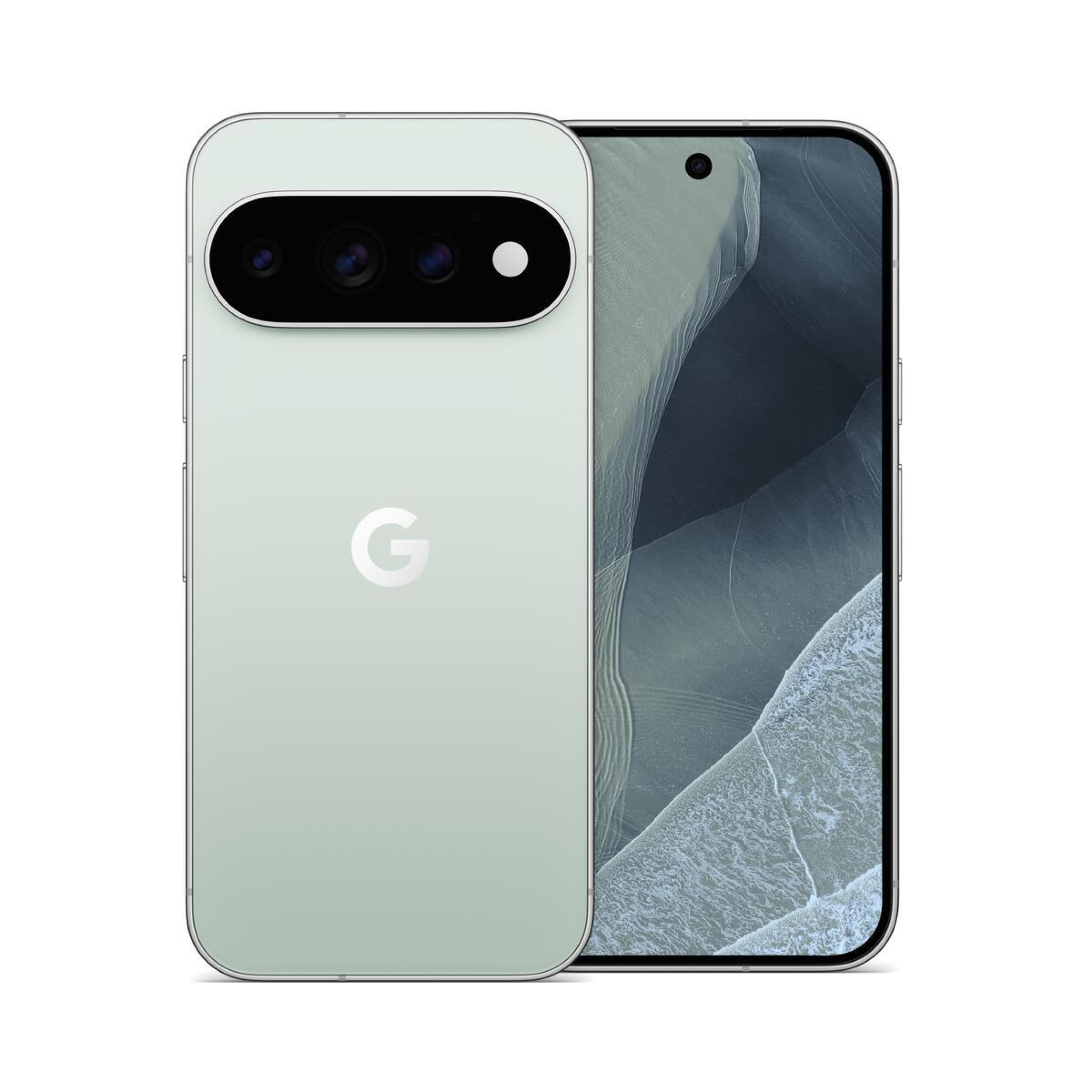
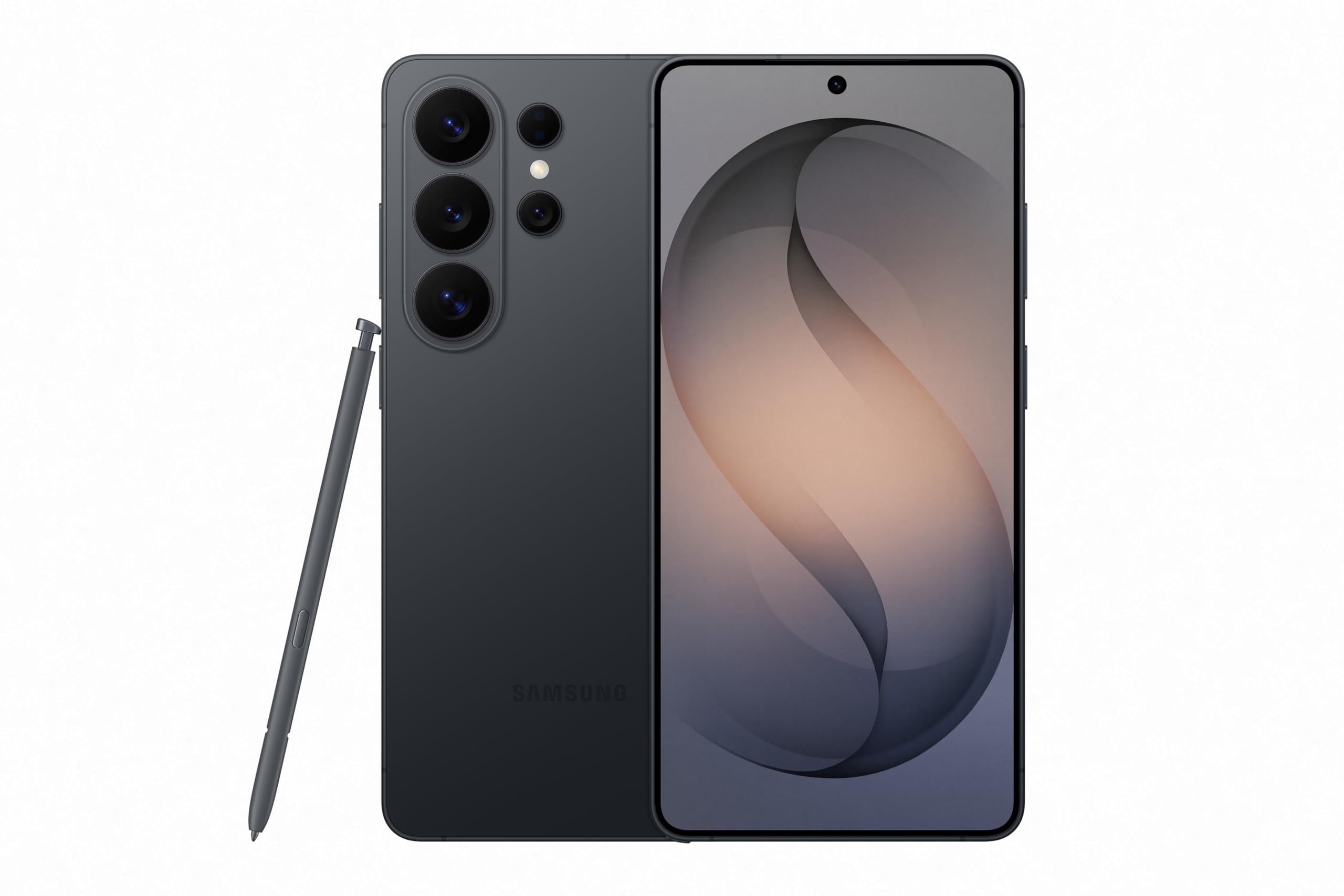
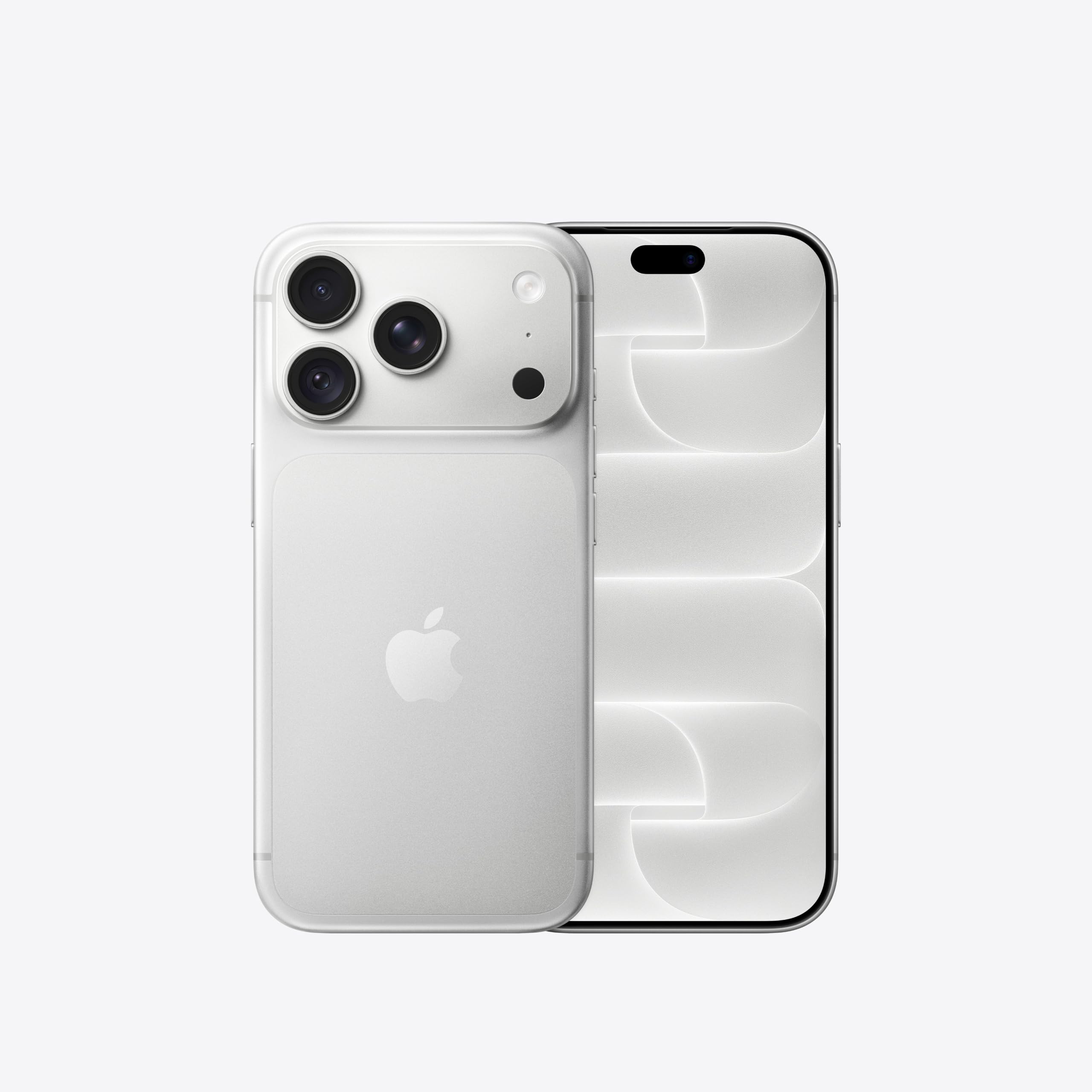
Affiliate links: we may earn a commission from qualifying purchases, with no effect on the price or the order of products.
Where to find the new icons
The new designs sit inside the X app on iPhone and iPad, under Settings > Subscription > App Icons, the path 9to5Mac lists for the release. Access to the icon choices comes with X Premium, the subscription formerly known as Twitter Blue. The report recalls that the alternative icon set was originally part of that plan, and that Twitter Blue briefly included seasonal icons.
What the report covers
The 9to5Mac report describes the new set as part of the app release it covers and notes that the options include more ground-level space designs and more. It does not list the individual designs beyond that description. Whether the icons appear for a given user depends on subscription status, since the choices are tied to X Premium.
Related coverage
Source: 9to5Mac · Apple & apps
Video

What changed
- Page updated

Sir Compare’s letter
Updates on Apps & software? I’ll send them your way.
Pick what you care about: I only write when something new comes out — a guide, a news story, a verified price that drops.
Step 1 of 2
What are you into?
Pick as many as you like. Pick none and you get what’s new in every section.
- Only what you pick
- Never an empty email
- One click to leave