
Notizia
Laptop as a second monitor: Miracast, AirPlay and Deskreen steps
Aggiornato
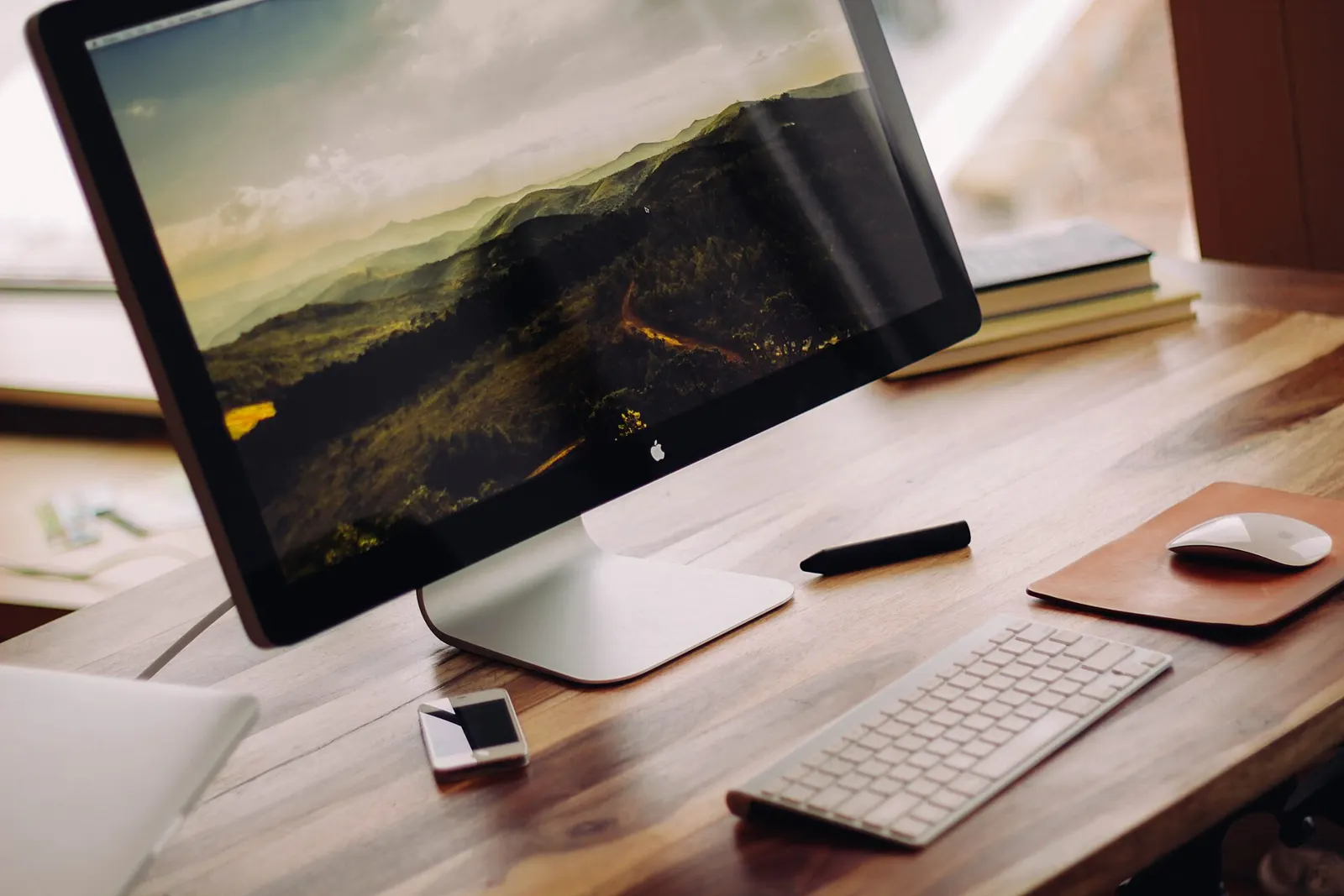
What you gain from a spare laptop
Adding a second screen is one of the simplest ways to upgrade a workflow, whether you are gaming, working or browsing, according to Engadget · Tech e gadget (US). Mirroring shows the same desktop on both screens and suits presentations. Extending gives you one wider desktop, with more visible tabs and easier multitasking.
You don't need a fancy setup. A spare laptop at home can become a dual-monitor arrangement with a few small tweaks. The catch: it is not as simple as plugging in an HDMI cable. You first check compatibility, weigh wired against wireless, then adjust settings to extend or mirror the display.
Windows to Windows over Miracast
If both machines run Windows 10 or 11, the built-in wireless casting tools do the job. They rely on Miracast, which connects devices over Wi-Fi.
On the spare laptop, open Settings, then System, then Projecting to this PC. Click Optional features, then View features, and select Wireless Display to add it. After it installs, return to that page, set it to Available everywhere and open the Wireless Display app. On the main computer, press Windows key + K, pick the spare laptop, enter the PIN and allow keyboard and mouse input. Choose duplicate or extend, and switch anytime with Windows key + P.
The lag trade-off on wireless
Both machines need Wi-Fi for this method, and you may see some lag. That makes it good for presentations or organising large numbers of tabs, but possibly not the best choice for gaming.
Apple's AirPlay has the same wireless constraint. It works over Wi-Fi and can therefore show a slight delay. If you want a wired option with less lag, the HDMI route is the one to look at.
Mac to Mac with AirPlay
Two Macs can connect through AirPlay, but only if the MacBook is from 2018 or later. Check that first.
On the MacBook you want as the second screen, open System Settings, select General, then AirDrop & Continuity. Turn on AirPlay Receiver and, under Allow AirPlay for, pick Current User. Both MacBooks must be signed into the same Apple ID for a smooth connection. On the primary device, open System Settings, then Displays, click the plus sign in the dropdown and select the secondary device. Then choose mirroring or extended display in settings.
Mixed systems need Deskreen
Connecting different operating systems, such as a Windows PC and a MacBook, or anything involving Linux, calls for software like Deskreen. It is free, open-source and runs over Wi-Fi.
Put both computers on the same Wi-Fi network and download Deskreen on the main device. Deskreen offers a QR code and a URL. Open that in the spare laptop's browser to link the two machines.
Related coverage
Notizia
- MATEIN travel backpack at 42% off: 30 litres, 15.6-inch laptop sleeve
- Lenovo Yoga Slim 7X OLED 14" at $649.99
- Windows 11 on iPhone Duo: no jailbreak, but 4.5GB RAM
- Lenovo Yoga 7i 16" 2-in-1 drops to $650 for Black Friday
- Anker Prime 3-in-1: iPhone, Watch and AirPods for under £95
- Storing a laptop long-term: back up first, keep the battery near 50%
- Laptop fans roaring out of nowhere: dust, airflow and background apps
- Importing tech: SIM trays, 5G bands and warranty limits to check
- Galaxy phone as a laptop: $100 DeX setup, what it costs
- Motorola Signature 27: Gemini tools, AI widgets and launch on 19 November
- Find your PC's graphics card: Task Manager, msinfo, PowerShell, DxDiag
- Qwen 3.8 27B: reading model weights on a laptop
Source: Engadget · Tech e gadget (US)
Video
Cosa è cambiato
- Pagina aggiornata

La posta di Sir Compare
Novità su Tecnologia e computer? Te le scrivo io.
Scegli cosa ti interessa: ti scrivo solo quando esce qualcosa di nuovo — una guida, una notizia, un prezzo verificato che scende.
Passo 1 di 2
Cosa ti interessa?
Scegline quante vuoi. Se non scegli niente, ricevi le novità di tutte le sezioni.
- Solo quello che scegli
- Mai email vuote
- Esci con un clic